Managing your FSSAI license is an essential part of running a compliant food business. Many food manufacturers, food retail businesses, and distributors struggle to keep track of FSSAI license renewals, expiry dates, and compliance documentation.
The myFssai platform simplifies this entire process by offering a secure, centralized space to upload, manage, and track your FSSAI licenses. Whether you handle a single food manufactuing unit or multiple branches, myFssai ensures your compliance documents are always accessible, organized, and up to date.
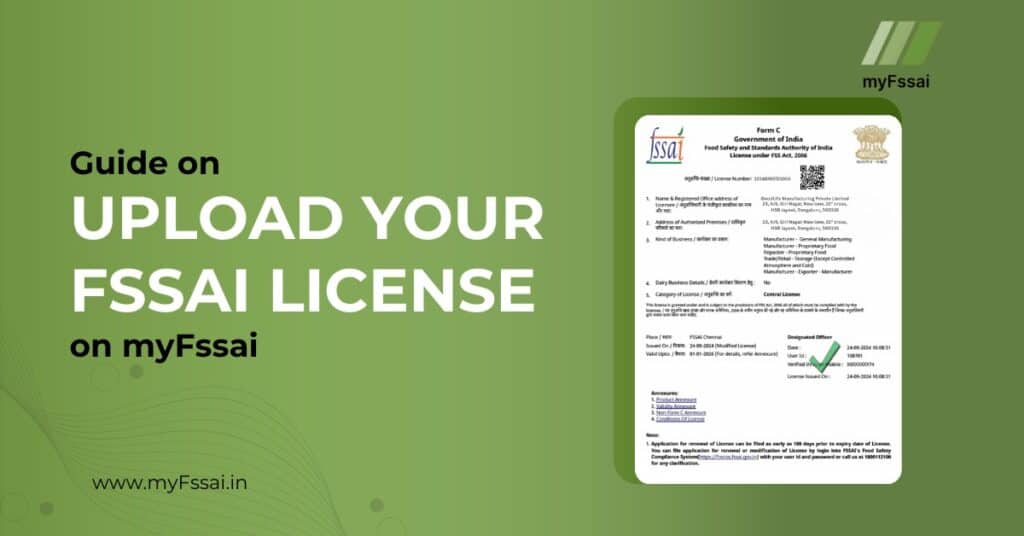
This guide walks you through each step of uploading your FSSAI license on the myFssai platform.
Key Features
1. Centralized License Management
Store all your FSSAI licenses in one platform. myFssai helps you organize multiple licenses by location or business unit making compliance tracking effortless.
2. Automated Expiry Tracking
The platform automatically detects and records your license validity. You’ll receive renewal reminders and notifications before FSSAI License expiry, ensuring your business never misses a compliance deadline.
3. Smart Access & Sharing
Instantly download or share your FSSAI license details with auditors, regulatory authorities, or internal teams no need to search through multiple folders or emails.
5. Integration with FSSAI Services
Once uploaded, your license details can be seamlessly used for other FSSAI services within myFssai such as FSSAI renewals, License modifications, or FSSAI new License application requests.
How to Upload Your FSSAI License on myFssai
Follow these simple steps to upload your license:
Step 1: Login to Your myFssai Account
Visit https://myfssai.in and log in with your registered email ID and password. If you’re a new user, click Download the app Now.
Step 2: Go to the License Management Section
From your dashboard, select “FSSAI License Management” or “Documents” in the main menu. This section displays all your existing uploaded documents.

Step 3: Click ‘Upload License’
On on the home tab, Click on the “Plus Icon”, then select “Upload Existing” to begin adding your Existing license, Select the file from your local device, by clicking on File.
Click ‘Choose File’ or ‘Browse’ and upload a clear scanned copy or digital file of your license (PDF). Ensure that the file includes all key details and the FSSAI logo.
Once the license data are filled, Select the “Nature of Business” relevant to your Kind of Business.
Select ‘Upload License’ to begin adding a new license. A pop-up or upload form will appear on the screen.
Step 4: Save and Confirm Upload
Fill the Check box “Agree” and upload your license. .

Step 5: Manage and Monitor Your Licenses
Return to your License Dashboard to view all uploaded licenses. From this section, you can:
- Replace expired documents with renewed ones
- View license validity and expiry timelines
- Download or share documents instantly
Conclusion
Uploading your FSSAI license on myFssai is the first step toward effortless compliance management. With automated expiry alerts, secure cloud storage, and integrated FSSAI service options, the platform ensures that your business stays audit-ready at all times.
Start managing your food business documentation the smarter way 👉 Visit myfssai.in, log in to your account, and upload your FSSAI license today.